Setup & Fixes
Radley smartwatch troubleshooting: fix connection, pairing and app problems
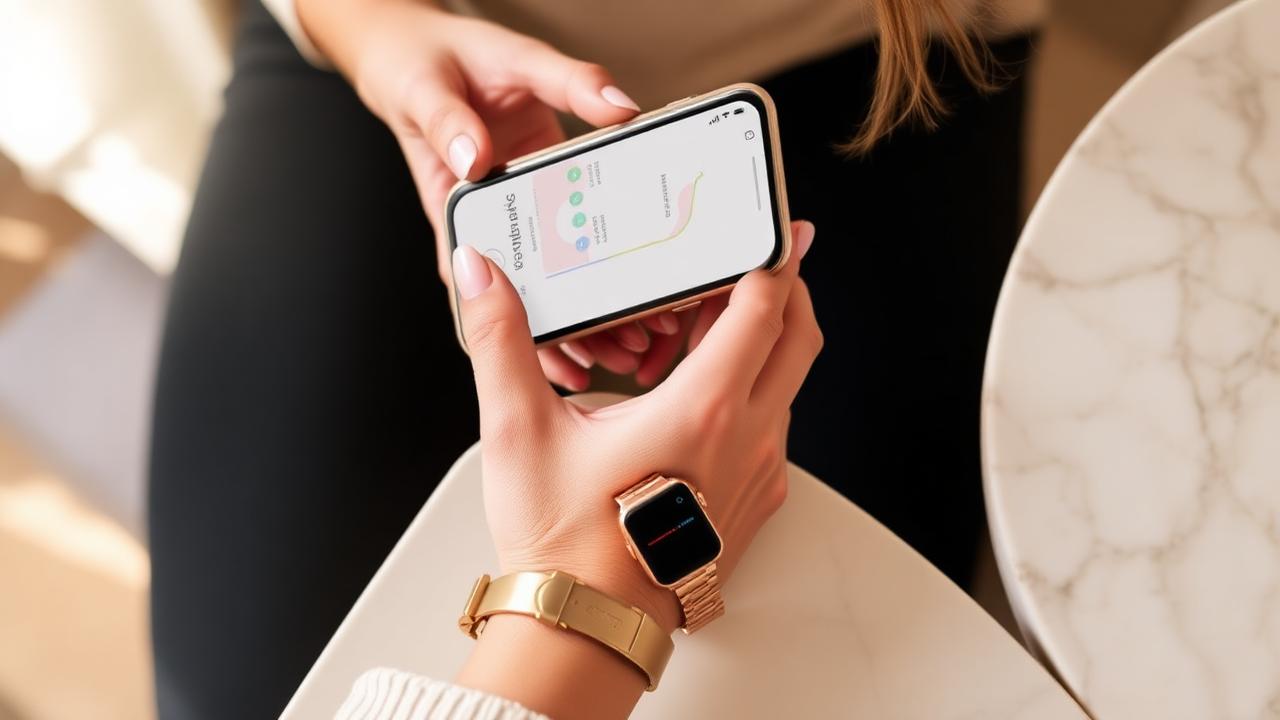
Most Radley watch connection problems are not hardware faults. They're the result of a setup process that has more steps than the quick-start leaflet suggests (particularly on the calling models, which need two separate Bluetooth connections), plus phone operating systems that aggressively shut down background apps. This guide walks through a clean setup first, then works through the most common problems in order of how often they come up.
These steps apply to the current range (Series 8, 20, 21, 32, 33) and, with minor menu differences, to older Series too.
Setting up from scratch (the right way)
- Charge the watch fully first. A watch that arrives half-charged and dies mid-pairing causes a surprising share of "it never worked" returns.
- Install the RADLEY SMART app from the App Store or Google Play. Pair through the app, not through your phone's Bluetooth settings. This is the step most people get backwards. If you pair via phone settings first, the app often can't find the watch; if you've done this, "forget" the watch in Bluetooth settings and start again from the app.
- Create/allow the app's permissions. The app needs Bluetooth, and on Android, Location (Android requires location permission for Bluetooth scanning; the app isn't tracking you) and Notification access. On iPhone, allow Bluetooth and notifications when prompted.
- Pair in the app. With the watch on and next to your phone, use the app's add-device flow and select your watch when it appears.
- Calling models only (Series 19/20 and calling-capable 33s): after the app pairing succeeds, the watch prompts a second pairing for the calling function. Accept it, and if prompted on your phone, confirm the Bluetooth pairing request there too. Your phone's Bluetooth settings should then show the watch as "connected for calls." You can also sync contacts and call history at this stage. If this second prompt never appears or fails, go to your phone's Bluetooth settings manually, find the watch, and pair it there. This second connection is the one exception to the "always pair through the app" rule.
- Set the watch to sync. Time and language come from your phone automatically once connected; if the time is wrong after pairing, restart the watch.
Radley watch connection problem 1: the watch won’t pair at all
Work through these in order. The fix is usually in the first three.
- Forget everything and restart. Remove the watch from the app, "forget" it in your phone's Bluetooth settings, restart both devices, then pair fresh through the app.
- Check nothing else owns the watch. The watch can only connect to one phone/app at a time. If it was ever paired to another phone (or a returned/display unit was paired in-store), it may still be bound to it. Disconnect it from the old device in that phone's app, or reset the watch from its own settings menu.
- Bluetooth scanning permissions (Android). Settings → Apps → RADLEY SMART → Permissions: allow Nearby devices/Bluetooth and Location. Without location permission, Android silently blocks Bluetooth scanning and the app will simply never find the watch.
- Battery optimisation (Android). Some phones (Samsung, Xiaomi, Huawei especially) put the app to sleep. Set RADLEY SMART to "unrestricted" battery use.
- Distance and interference. Pair with the watch within a metre of the phone, away from other Bluetooth audio devices actively streaming.
- If none of that works, charge the watch fully, try pairing with a different phone to isolate whether the fault is watch-side or phone-side. If it fails on a second phone too, it's a warranty conversation (details at the end).
Radley watch connection problem 2: notifications aren’t coming through
This is the most common complaint after the first week, and it's almost always settings, not the watch.
- In the RADLEY SMART app, go to settings → notifications and switch on each app you want mirrored to the watch. If an app you want isn't listed, enable "Other", which forwards all banner notifications.
- Check the phone side: the app whose notifications you want must be allowed to show banner/pop-up notifications on the phone. The watch can only mirror what the phone displays.
- Do Not Disturb on the phone suppresses watch notifications too.
- On Android, if notifications work for a day and then stop, it's battery optimisation killing the app's background process. Set it to unrestricted (see above).
- Still nothing? Restart the RADLEY SMART app, then the phone.
Radley watch connection problem 3: Bluetooth calling won’t work (Series 19/20/33)
- Open your phone's Bluetooth settings. The watch should appear and show as connected "for calls" (wording varies by phone). If it shows in the app but not here, redo the secondary pairing: watch → swipe to the phone/calling function, and accept the pairing prompts on both devices.
- If the pairing prompt loops or fails, forget the watch in Bluetooth settings, toggle Bluetooth off and on, and redo it.
- On the watch, the phone function has three tabs (recent calls, dial pad, contacts). Speaker volume is adjusted with +/– during a call; end with the red icon.
- Calls drop when you walk away from your phone: the audio link is standard Bluetooth range, so roughly a room. That's expected behaviour, not a fault.
- If contacts don't appear on the watch, re-run the contact sync from the app and confirm you granted the contacts permission.
Problem 4: step count seems wrong
Radley trackers use wrist accelerometers, which means motion, not footsteps, is what's actually measured. Two consequences:
- Undercounting: pushing a pram, a shopping trolley or holding a dog lead keeps your wrist still, so those steps largely don't register. This is inherent to all wrist trackers, not a Radley defect.
- Overcounting: vigorous arm movement (cooking, drumming, enthusiastic conversation) can add phantom steps.
Also check: steps reset to zero at midnight by design; the app only displays data for the currently connected watch; and the watch needs to sync with the app for steps to appear there. Open the app and pull to refresh if the numbers look stale.
Problem 5: sleep tracking is blank or patchy
Sleep tracking only works if the watch is on your wrist overnight and has enough charge to last the night. If it dies at 3am, the night's data is lost, not recovered later. Wear it snugly (a loose watch reads restlessness badly), and note that only some models track sleep continuously around the clock; on others, sleep is inferred from a typical overnight window.
Problem 6: battery draining fast
Up to seven days is the headline figure; real-world use with lots of notifications, frequent heart-rate sampling and high screen brightness lands closer to three to five. To stretch it: lower screen brightness, shorten the screen-on timeout, reduce continuous heart-rate frequency in the app, disable raise-to-wake if you don't use it, and cull notification sources you don't need on your wrist. A battery that suddenly drops from days to hours, though, is a hardware issue and belongs on the warranty route.
Problem 7: watch shows the wrong time or language
Both come from the phone. Time syncs automatically when connected; if it's wrong, restart the watch while connected. Language follows your phone's system language once synced through the app.
Resetting the watch
A factory reset from the watch's own settings menu clears pairing bonds and data and fixes a good share of persistent weirdness. Do it after removing the watch from the app, and note that unsynced activity data is lost.
When it's a warranty problem
Quick FAQ
Do Radley smartwatches work with iPhone?+
Yes. The RADLEY SMART app supports both iOS and Android, and features are broadly equivalent on both.
Can I connect the watch to two phones?+
No. One device at a time; the app lets you disconnect and switch.
Can I reply to messages from the watch?+
You can read notifications; replying is not supported. These watches mirror the phone rather than run their own messaging.
Is my Radley smartwatch waterproof?+
The range is water-resistant to varying degrees, fine for handwashing and rain on current models, but check your specific model's rating before swimming, and avoid hot water (showers, hot tubs) regardless, as heat degrades seals.
Can I use the watch to take photos?+
Yes. The remote camera feature lets the watch trigger your phone's shutter. Select the camera option on the watch with your phone unlocked.
Related: deciding between models? See our model comparison. Strap worn out? Strap replacement guide.