Owner's guide
How to change the clock face on your Radley smartwatch
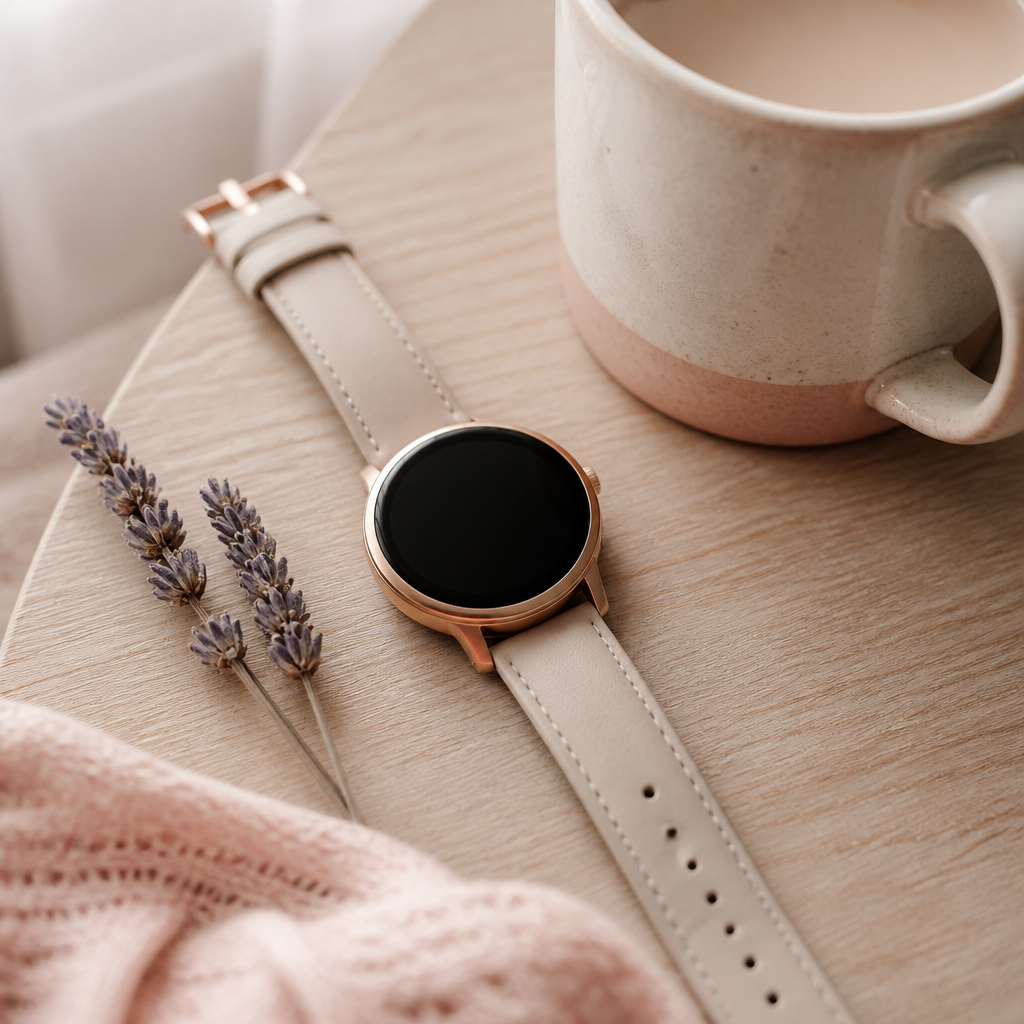
Your Radley smartwatch is more than just a tool for tracking your daily steps or checking your heart rate; it is a personal fashion accessory. One of the most enjoyable aspects of owning a piece from the Radley collection is the ability to customise how it looks on your wrist. Whether you have chosen a Series 8 with its sleek rectangular screen or a Series 33 with a classic round dial, the digital face can be swapped to suit your mood, your outfit, or your environment.
Because Radley watches are manufactured by Peers Hardy here in the UK, they use a specific software system designed to be accessible and straightforward. You do not need to be a technical expert to refresh your display. Making the most of the different aesthetic options available ensures that your timepiece remains a focal point of your wardrobe, transitioning comfortably from a morning gym session to an evening dinner with friends.
Using the watch to swap your dial
The quickest way to refresh your look is to use the pre-loaded faces already stored on the watch's internal memory. This is particularly useful when you are away from your phone and want an instant change. Most Radley models come with a handful of signature designs, often featuring the iconic Scottie dog or minimalist floral patterns that the brand is known for.
To begin, wake up your watch screen by tapping it or lifting your wrist. Once the current clock face is visible, press and hold your finger firmly in the centre of the screen for about two seconds. You will feel a slight haptic vibration or see the screen shrink slightly, indicating that you have entered the selection menu. From here, you can swipe left or right to scroll through the available designs. When you find one that catches your eye, simply tap it once to set it as your new default face.
Selecting new designs via the Radley Smart app
While the on-device selection is convenient, the Radley Smart companion app provides a much wider range of choices. The app acts as a gateway to a library of designs created specifically for your model. It is important to ensure your watch is properly synced with your smartphone via Bluetooth before attempting to push a new design to the hardware.
Open the app on your iOS or Android device and navigate to the settings or device section. Look for an option labelled 'Watch Faces' or 'Dial Gallery'. Inside this menu, you will see dozens of styles ranging from traditional analogue looks with virtual hands to modern digital readouts that prioritise your fitness data. When you select a new face, the app will download the file and transfer it to your watch. This process usually takes about sixty seconds, during which time you should keep the watch and phone close together.
Creating a custom photo clock face
One of the standout features of the Radley Smart system is the ability to use your own photography as a background. This allows you to carry a picture of your family, a pet, or a favourite landscape with you throughout the day. This level of personalisation is what often sets these fashion-focused trackers apart from more clinical, sporty alternatives.
Within the app's watch face menu, there is typically an 'Edit' or 'Custom' option. When you select this, you can choose an image from your phone's camera roll. You will also be given basic controls to change the position of the time display and select the colour of the digits so they don't get lost against your photo. It is a lovely way to make the device feel truly yours.
- Open the Radley Smart app and tap the 'Device' icon at the bottom.
- Select 'Watch Faces' to enter the design library.
- Choose 'Edit' on the first dial option to begin a custom creation.
- Tap the plus icon to select a photo from your smartphone gallery.
- Adjust the time placement and choose a font colour that contrasts well.
- Tap 'Save' or 'Sync' and wait for the progress bar to complete on your watch.
Troubleshooting dial sync issues
Every so often, you might find that a new face refuses to load or the app stays stuck on a 'transferring' screen. This is rarely a sign of a hardware fault. Instead, it is usually a simple communication glitch between the Bluetooth on your phone and the receiver in the watch. These devices operate on a low-power connection to preserve the five to seven days of battery life you typically enjoy.
If the transfer fails, try toggling the Bluetooth on your phone off and then back on again. Ensure that your watch has at least twenty percent battery remaining, as some models will block data transfers when the power is low to prevent the watch from shutting down mid-update. Restarting the Radley Smart app can also clear any temporary cache issues that might be preventing the dial gallery from loading correctly.
Frequently asked
- How many clock faces can I store on my watch?
- Most Radley models hold between four and six faces locally. When you download a new one from the app, it usually replaces the last custom face you added.
- Can I download third-party watch faces from an app store?
- No, Radley watches use a closed system. You must use the designs provided within the official Radley Smart app.
- Does changing the watch face drain the battery faster?
- Highly animated faces or those with very bright colours may have a small impact, but generally, the battery life remains at the standard 5–7 days regardless of the design.
- Why is my custom photo looking blurry on the watch?
- This usually happens if the original photo is too small or low-resolution. For the best result, use a clear, well-lit photo and keep the subject centred.
Learning how to change the clock face on your Radley smartwatch is the first step in mastering your new device. It allows the watch to grow with you, changing from a professional analogue face for the office to a playful, dog-themed design for the weekend. By spending a few minutes exploring the library in the app, you will discover just how versatile your timepiece can be.