Owner's guide
How to read messages and notifications on a Radley smartwatch
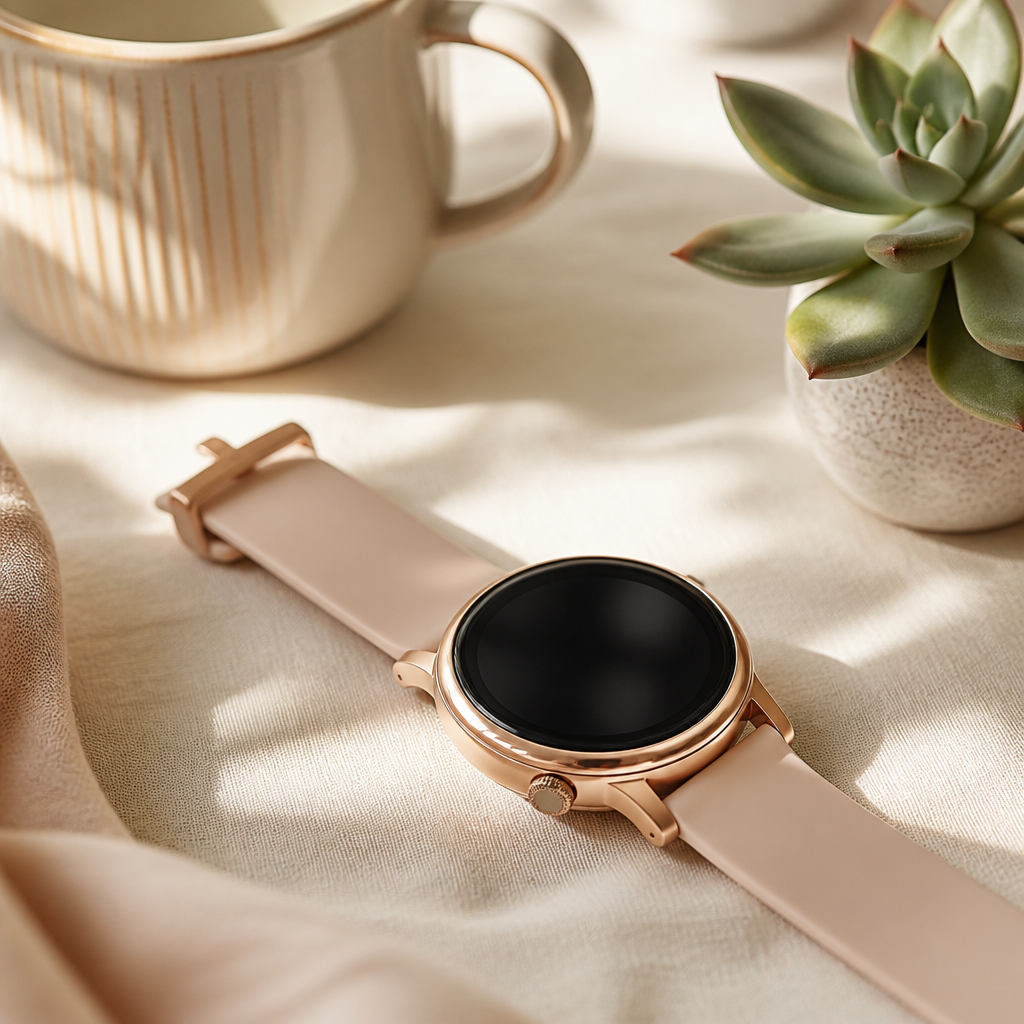
Checking your wrist for a quick update is much more discreet than pulling your phone out during a meeting or a catch-up with friends. Your Radley smartwatch is designed to act as a convenient extension of your smartphone, allowing you to stay connected without being tethered to a screen. Whether you are using a Series 8, Series 20, or one of the later models like the Series 33, the core functionality focuses on delivering clear, timely notifications directly to your wrist.
However, getting these alerts to appear correctly requires a specific sequence of settings within both your phone's operating system and the dedicated application. If you have recently unboxed your device or found that your alerts have suddenly stopped, understanding the mechanics of the RADLEY SMART app is the first step toward a smoother experience. This guide will walk you through the process of ensuring your messages are visible and easy to read whenever you need them.
Setting up the RADLEY SMART app for notifications
The bridge between your phone and your watch is the RADLEY SMART app. Without this professional link, your watch is simply a beautiful timekeeper. To begin receiving messages, you must ensure that your watch is properly paired via Bluetooth through the app rather than just through your phone's basic Bluetooth settings. This ensures the data sync is stable and that the notification protocols are active.
Inside the app, you will find a section dedicated to notifications or alerts. Here, you can toggle which applications are allowed to send information to your wrist. Most users prefer to enable SMS, WhatsApp, and perhaps email. It is worth noting that your watch can only display what your phone receives; if you have silenced a chat on your phone, it will not vibrate or show up on your watch either.
Navigating to your messages on the watch face
Once the settings are configured, reading a message is usually a matter of a simple gesture. On most Radley models, such as the Series 21 or 32, you can swipe down or up from the main clock face to access the message centre. This area stores the most recent notifications you have received, allowing you to scroll through them even if you missed the initial vibration.
When a new message arrives, the watch typically vibrates and wakes the screen to show a preview. If you tap the screen during this brief window, you can read the full text provided it fits within the watch's character limit. Because these devices are fashion-forward fitness trackers rather than full-scale communication hubs, they are perfect for reading but do not support typing out a reply directly on the watch face.
Steps to enable message permissions on your phone
- Open the RADLEY SMART app on your mobile device and navigate to the 'Settings' or 'Device' tab.
- Select 'Notifications' and toggle the switch for 'Messages' or 'SMS' to the on position.
- Go to your phone’s system settings, find 'Notifications', and ensure 'Show Previews' is set to 'Always' or 'When Unlocked'.
- Check that the RADLEY SMART app has permission to access your contacts and notifications in your phone's privacy settings.
- Restart both your phone and your watch to refresh the sync if messages are still not appearing.
Why can I not see my full message?
It is a common question why some messages appear truncated or why only the sender's name is visible. This usually comes down to privacy settings on your smartphone. If your phone is set to hide the content of notifications on the lock screen, it will also hide that content from the watch. The watch essentially mirrors the notification banner that appears at the top of your phone screen.
To fix this, you must change your phone settings to 'Show Previews'. This allows the text data to be broadcast over the Bluetooth connection to your Radley device. If you are concerned about privacy, remember that the watch will only show the message when it is on your wrist and the screen is activated by your movement or a touch.
Troubleshooting common notification issues
If you find that you are no longer receiving alerts, the first thing to check is the 'Do Not Disturb' mode. Both your phone and your watch have this feature. If either is active, notifications will be silenced and will not wake the screen. On your Radley watch, you can often find this setting by swiping to the quick settings menu, usually represented by a crescent moon icon.
Battery saving modes are another common culprit. When your phone reaches a low battery percentage, it may disable the background sync needed to push messages to your watch. Similarly, if your watch battery is very low, it may stop vibrating for incoming alerts to preserve the remaining power for basic timekeeping.
Frequently asked
- Can I reply to messages on my Radley smartwatch?
- No, Radley watches are designed for reading notifications only. To reply, you will need to use your paired smartphone.
- Does the watch show emojis in messages?
- Basic emojis are often supported, but more complex or newer icons may appear as small boxes or question marks depending on your specific model.
- How many messages can the watch store?
- Most models store the last 5 to 10 notifications. Once the memory is full, the oldest message is deleted to make room for the newest one.
- Will I get messages if my phone is in another room?
- You will receive messages as long as you are within Bluetooth range, which is typically about 10 metres without major obstructions like thick walls.
Mastering the notification system on your Radley smartwatch makes daily life just a little bit more managed. These watches strike a fair balance between traditional aesthetic and modern utility. By ensuring your permissions are correctly toggled in the RADLEY SMART app and that your phone is willing to share message previews, you can enjoy the peace of mind that comes with staying informed without the constant need to check your handset.