Owner's guide
How to set the time on a Radley Series 20 smartwatch
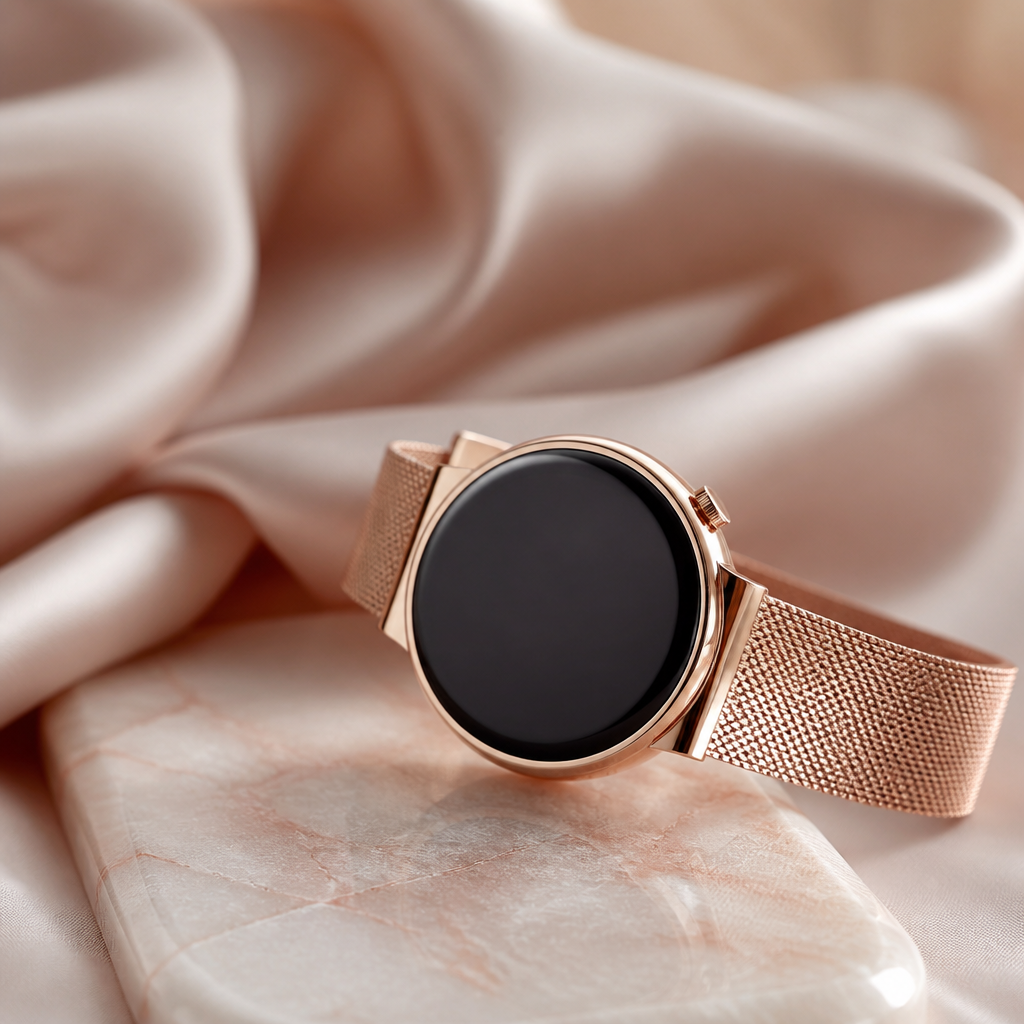
If you have recently treated yourself to a Radley Series 20 or received one as a thoughtful gift, you might be wondering why there isn't a traditional winder to adjust the hands or numbers. Unlike a mechanical timepiece, your Series 20 is a digital companion that relies on a different kind of connection to stay punctual. Learning how to set time on Radley smartwatch Series 20 models is a straightforward process, but it requires a few steps involving your smartphone rather than the watch itself.
The Series 20 is one of the more popular entries in the Radley London range, offering a blend of classic British design and practical activity tracking. Because these watches are manufactured by the experts at Peers Hardy, they follow a specific logic for data synchronisation. The time isn't actually set on the device; instead, the watch mirrors whatever time is shown on your phone. This ensures that even when you travel between time zones or when the clocks change for British Summer Time, your watch updates itself without you having to press a single button.
The connection between your watch and the app
To get the correct time, your Series 20 needs to talk to the official RADLEY SMART app. This application acts as the brain for your wearable, storing your fitness data and pushing notifications to your wrist. If your watch is showing the wrong time or date, it is almost certainly because the Bluetooth link between your phone and your watch has been interrupted. When the link is active, the watch pulls the exact time from the handset's network provider, which is refined to the second.
Many owners feel tempted to look through the settings menu on the watch face to find a clock adjustment tool. You won't find one there. This design choice prevents accidental changes if you bump the screen during exercise or while you are asleep. By keeping the time-setting function within the app, Radley ensures that your device remains a reliable reference point throughout the day.
Step-by-step guide to syncing the time
Setting the time is part of the initial pairing process. If your watch is brand new, make sure it has at least a fifty percent charge before you begin. A low battery can sometimes cause the Bluetooth radio to underperform, which might lead to a failed sync or an incorrect time display.
- Download the RADLEY SMART app from the Apple App Store or Google Play Store.
- Ensure Bluetooth is enabled in your smartphone's system settings.
- Open the app and follow the prompts to create a profile or sign in as a guest.
- Select 'Add Device' from the menu and choose the Series 20 from the list of available watches.
- Confirm the pairing request on both your phone and the watch screen.
- Wait for the 'Syncing' icon to disappear in the app; your watch time will now match your phone.
Troubleshooting a time mismatch
Occasionally, you might notice the time drifting or staying stuck on an old hour. This is most common after the watch has been turned off for a long period or if the battery has fully depleted. When the Series 20 loses power, its internal clock stops. Once you recharge it, you must open the app on your phone to 'tell' the watch what time it is again.
If the app says it is connected but the time is still wrong, try navigating to the 'Profile' or 'Settings' tab within the app and pull down on the screen to refresh the data. This manual refresh signal usually forces the time to calibrate. If this fails, removing the device from your Bluetooth list and re-pairing it within the app is the most effective way to solve the problem.
Changing between 12-hour and 24-hour formats
While the numbers themselves are pulled from your phone, the way they look is often customisable. Many Radley Series 20 users prefer a 12-hour clock with an AM/PM indicator, while others find the 24-hour military format easier for scheduling. This setting is toggled within the 'Device' or 'More' section of the RADLEY SMART app.
Remember that some specific watch faces are hard-coded to a certain format. If you change the setting in the app but the watch face doesn't reflect the change, try switching to a different digital dial face. The Series 20 offers several options, and some are designed specifically for clarity with large 24-hour digits, while others lean into a more decorative 12-hour aesthetic.
Frequently asked
- Do I need to reset the time when I travel abroad?
- No, as long as your phone updates to the local time, your Radley Series 20 will update automatically the next time it syncs with the app.
- Why is my watch time a few minutes slow?
- This usually happens if the watch hasn't synced with the app recently. Open the RADLEY SMART app and perform a manual sync to fix the drift.
- Can I set the time without a smartphone?
- The Radley Series 20 requires a smartphone link to set the initial time. It cannot be set manually on the watch itself.
- What happens to the time when the battery dies?
- The watch will lose the current time once the battery is empty. You will need to charge it and sync with the app to restore the correct time.
Mastering your Radley Series 20 is all about understanding that the watch and your phone work as a team. By ensuring your RADLEY SMART app is updated and your Bluetooth connection remains stable, you can trust that your watch will always keep you on schedule. Whether you are heading to a business meeting or timing your morning walk, your Series 20 will be a reliable, stylish companion on your wrist.