Owner's guide
How to pair a Radley smartwatch with an iPhone
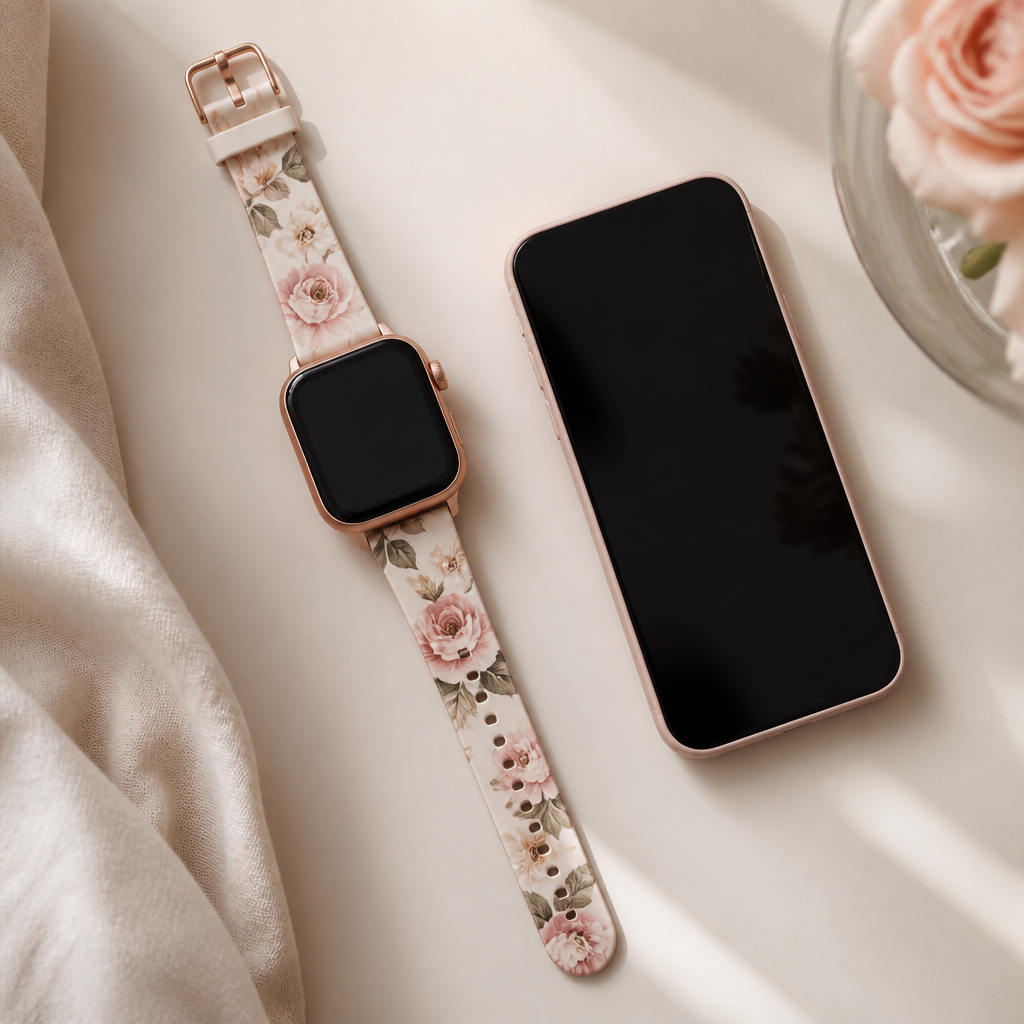
Getting your new timepiece connected to your phone is the very first step in making the most of its features. While these watches are designed to be beautiful accessories, their true utility comes from the link they share with your iPhone. This connection allows your Radley to track your steps, show you incoming messages, and keep your health data synced in one central place.
The process is straightforward, but it requires a specific sequence to ensure the Bluetooth bond stays strong. If you have just unboxed your Series 8 or a newer Series 33, you are likely eager to see those notifications appear on your wrist. This guide will walk you through the proper setup, ensuring you avoid the common pitfalls that sometimes cause disconnection issues later on.
Preparing your devices for the first connection
Before you begin the pairing process, you should check that both your watch and your iPhone are ready. Start by charging your Radley smartwatch. Even if it arrived with some battery life, a full charge ensures the firmware remains stable during the initial sync. Typically, these watches take about two hours to reach one hundred percent from an empty state.
On your iPhone, make sure your Bluetooth is switched on. You can find this in your settings or by swiping down from the top right corner to access the Control Centre. Ensure you are running a relatively modern version of iOS, as the companion app works best when the system software is up to date. It is also helpful to have your Wi-Fi or mobile data active so the app can download any necessary updates during the installation.
Downloading and using the RADLEY SMART app
The bridge between your watch and your phone is the RADLEY SMART app. This is available for free on the Apple App Store. Search for the app by name and look for the official icon. Once the download is complete, open the app and follow the prompts to set up your profile. You will be asked for details like your height, weight, and birth year, which helps the tracker provide more accurate estimations for calories burned and heart rate zones.
When the app asks for permissions, it is vital to grant access to Bluetooth, Location, and Notifications. Without these permissions, your iPhone might block the data flow, meaning you won't receive alerts for calls or texts. Location services are particularly important if you want the watch to track your outdoor walks using your phone's GPS, as Radley watches do not have GPS chips built into the hardware.
- Open the RADLEY SMART app on your iPhone.
- Ensure your watch is turned on and placed close to your phone.
- Navigate to the 'Device' tab within the app menu.
- Select 'Add Device' or 'Connect Device'.
- Wait for your specific watch model to appear in the list.
- Tap on the watch name to initiate the pairing request.
- Confirm the pairing request on your iPhone screen when prompted.
Confirming a successful connection
Once the pairing process finishes, you should see a small icon on your watch face indicating that Bluetooth is active. In the app, your device status will change from 'Disconnected' to 'Connected'. This is the best time to customise your notification settings. You can toggle which apps are allowed to send alerts to your wrist, such as WhatsApp, Instagram, or your standard Messages app.
If the watch does not appear in the app list during the search, check that it isn't currently connected to another phone nearby. These devices can typically only be bonded to one smartphone at a time. If you continue to have trouble, a simple restart of both the watch and the iPhone often clears any minor software glitches that might be hiding the Bluetooth signal.
Maintaining the link and troubleshooting
The connection between your Radley watch and your iPhone relies on a low-energy Bluetooth signal. This signal has a range of about ten metres. If you leave your phone in the kitchen and walk to the garden, the connection will likely drop. In most cases, the watch will automatically reconnect once you are back in range, but occasionally you may need to open the app to refresh the data sync manually.
If you notice that you have stopped receiving notifications, check the 'Do Not Disturb' settings on both your iPhone and the watch itself. If the watch is in its own quiet mode, it will silience all alerts even if the phone is still sending them. Also, remember that your iPhone must have the RADLEY SMART app running in the background. If you force-close the app by swiping it away in the App Switcher, the communication between the two devices will be severed.
Frequently asked
- Why is my Radley watch not showing up in the app search?
- Make sure the watch is not already paired to your iPhone's Bluetooth settings directly. If it is, 'forget' it there first. Also, ensure the watch battery is above 20% and the screen is awake.
- Can I pair my watch with multiple iPhones?
- No, a Radley smartwatch can only be actively paired with one phone at a time. To switch phones, you must unpair it from the current device first.
- Does the app need to be open all the time?
- The app needs to remain open in the background (minimized) for notifications to work. If you swipe the app closed completely, the watch will lose its connection.
- What should I do if my watch keeps disconnecting?
- Check that the RADLEY SMART app has 'Always' permission for location and that background app refresh is enabled in your iPhone settings.
Setting up your watch should be a pleasant experience that adds to the enjoyment of your new accessory. By following these steps, you ensure that your Radley London timepiece is more than just a fashion statement—it becomes a helpful companion for your daily routine. Once paired, you can explore the different watch faces and health tracking features at your leisure, knowing your data is safe and synced.